Field manual · 01
How to Use PropInspect
From Property to Report in 6 Steps
Add a property, create inspections, schedule and assign to your team, document rooms with photos and video, and share professional reports — here's how it works.
Quick tour
How it works in 60 seconds
-
01
Start in seconds
No setup, no template to build.
Type the address and the rooms are set up for you. No account needed.
-
02
Walk room by room
Every photo lands in the right room.
Take photos, record a short clip and add notes in the room they belong to.
-
03
Mark what matters
Repairs and damage, already sorted.
Tag each note as Info, Fix or Damage, right next to its photo.
-
04
Get the report
No write-up afterwards.
Every room, photo and note in one report the moment you finish.
-
05
Share a link or PDF
They see it today, not when the mail arrives.
Owners and tenants open the link without an account.
-
06
Keep the paperwork
Nothing to dig for when a dispute comes.
Leases, insurance and permits stay with the property, with a reminder before anything expires.
-
1. Add a Property
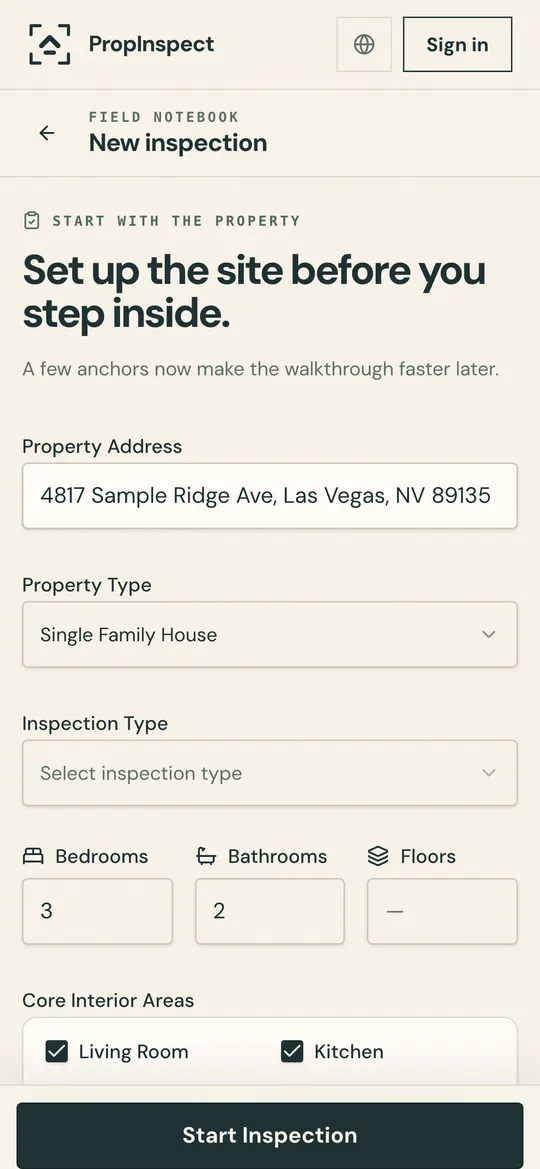
On your Dashboard, tap "New property." Start typing the address and pick a suggestion, then choose the state, the property type (house, apartment, condo, etc.), and the number of bedrooms, bathrooms, and floors. Check off interior areas and exterior features — the layout is saved and reused for every inspection.
- Addresses are suggested as you type; you always pick the state yourself
- Toggle amenities like garage, pool, yard, basement, and more
- Add custom areas (e.g. wine cellar, workshop) for unique layouts
- You can edit the property layout anytime from its detail page
-
2. Create an Inspection
Open your property and tap "New" to start an inspection. Choose the type that fits the visit — Move-In Walkthrough, Move-Out Check, Initial Check, Turnover Check, Follow-Up, and more. Rooms are generated automatically from the property layout — no need to re-enter details.
- Each inspection inherits the property's full room layout
- You can also create inspections from the Inspections tab
-
3. Schedule & Assign (Optional for solo landlords)
Working with a team? Schedule the inspection on the calendar and assign it to a team member. Admins can assign any agent in the company; the assigned agent will see it on their Schedule page. Inspecting your own rentals? Skip ahead to step 4.
- Use the Schedule tab to see all upcoming inspections at a glance
- Filter by agent to see each team member's workload
- Add day notes to coordinate with your team
-
4. Inspect Each Room
Tap on any room to open it. Take photos, record short walkthrough videos (up to 60 seconds each), and add notes to describe what you see — mark things as damage, info, or action items.
- Take multiple photos per room to document everything thoroughly
- Record videos for walkthroughs or hard-to-describe conditions
- Use the note types (damage, info, action) to categorize your findings
-
5. Review & Share Your Report
Tap the report icon to see a clean summary of all your findings — photos, videos, notes, and room status all in one place. Share it as a read-only link with one tap — no login required — or tap "Preview & Save PDF" to download a copy. Action items appear as a checklist you can check off, with resolution notes, as issues are fixed.
- Upload your company logo once and it appears on every report
- Videos are embedded directly in the report for easy playback
- Shared report viewers can see resolved items and their notes
- Track how many times your shared report has been viewed
- You can revoke the share link anytime for privacy
-
6. Manage From Your Dashboard
Your properties and inspections live on your Dashboard. Search, filter by type or status, and page through your list as it grows. Each property also keeps its own Records & Documents — leases, insurance, permits, and receipts — flagged in the app 30 days before anything expires.
- Create follow-up or move-out inspections under the same property
- Archive completed inspections and properties to keep things tidy
More Features
Spotty Signal
Lose signal mid-inspection? Keep working — photos, video, and notes are saved on your device and sync when you reconnect. Open the inspection while you still have signal.
Company & Team
Manage your company profile and logo, invite team members as agents, and assign inspections across your team. Admins see all company inspections; agents see only their own.
Pricing
Your first inspection is free, then $0.99 each — no subscription, no hidden fees. Top up a prepaid wallet with $5, $10, $20, or $50 and each inspection is paid automatically.
Ready to Get Started?
Add your first property and start inspecting in under a minute. Your first inspection is free.
Sign up free